Annotation tool
The annotation tool is the primary interface for labeling how robotic rollout episodes ended. An operator reviews video footage from one or more cameras, records the outcome, and optionally describes and categorises what happened. Annotations are embedded back into the HDF5 episode file.
Launching the tool
Standalone (Web UI)
The simplest way to annotate a batch of pre-recorded episodes:
oopsie-data annotate --samples-dir <DIR> --port <PORT> --annotator-name <YOUR_NAME>
If you leave out --annotator-name, the command asks for it before starting the server.
samples_dir should be the top level directory where your samples were recorded, port specifies on which port the webserver can be accessed (navigate to localhost:<port> to see the web interface) and annotator_name records who provided the annotation. Open http://localhost:<PORT> in a browser. The tool scans samples-dir for HDF5 files and MP4 videos, and presents them one at a time for annotation.
| Flag | Default | Description |
|---|---|---|
--samples-dir | samples | Directory containing the HDF5 episodes and MP4s to annotate |
--annotator-name | prompted for | Name stamped into every annotation you save |
--port | 5001 | Port for the local web server |
--no-browser | off | Do not open a browser window automatically |
--with-rollouts | off | Also serve the in-the-loop rollout pages. Not needed for annotating pre-recorded data |
The server can also be started directly as a module, which takes the same flags: python -m oopsie_data_tools.annotation_tool.annotator_server --samples-dir <DIR> --annotator-name <YOUR_NAME>.
In-the-loop (Web UI)
For instructions on launching the web tool for in-the-loop annotation, see our data collection instructions.
Web UI
Overview
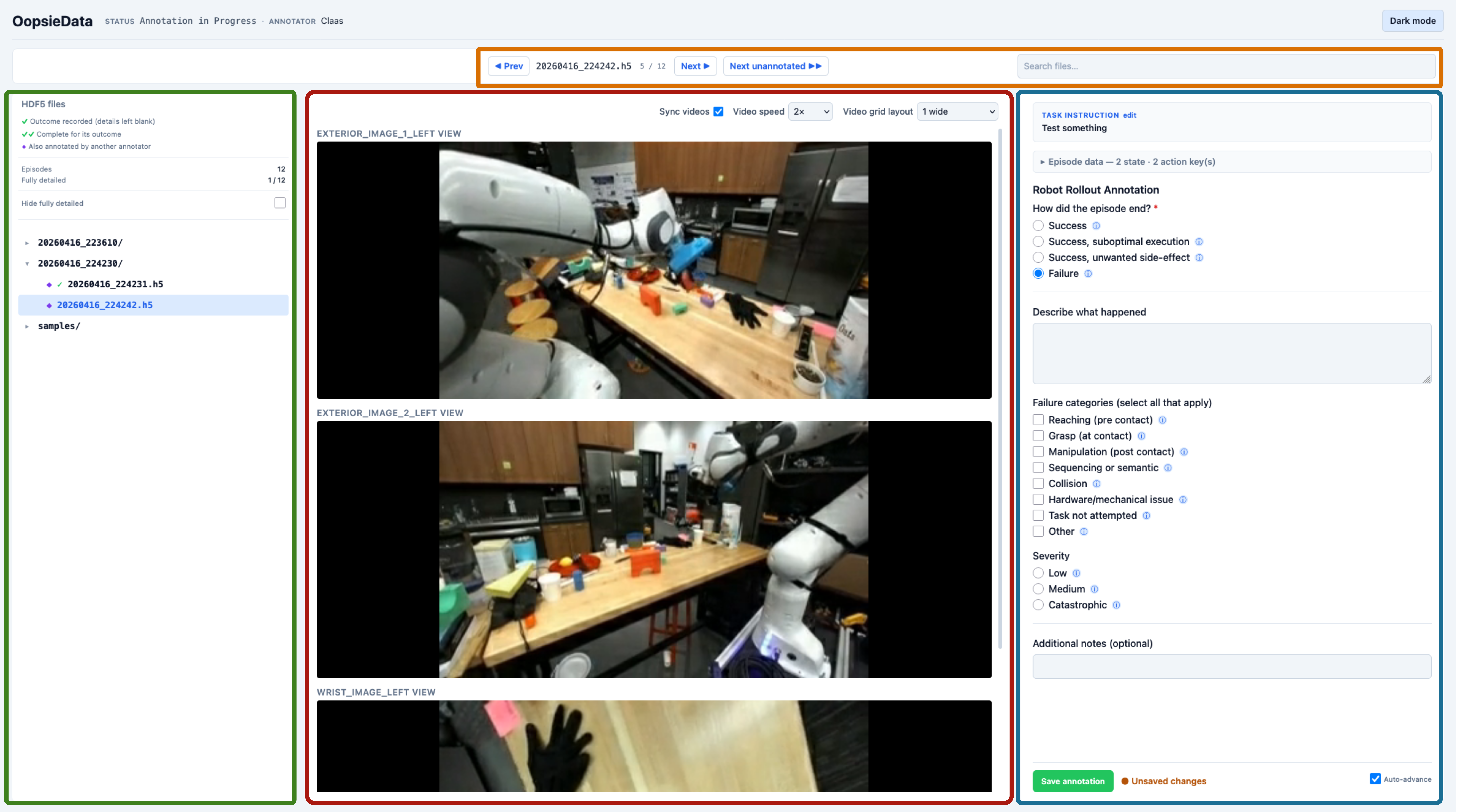
The main view has the following components:
- (1) Video Panel: Video playback controls
- (2) Navigation Panel: Overview of episodes and annotation status
- (3) Annotation Panel: Annotation questionnaire
- (4) Quick Navigation: Controls for navigating between episodes
The info panel summarizes the episode as it was recorded: the task instruction, the robot profile, and the logged state and action fields with their shapes. Fields that were not recorded are marked as empty, which makes it easy to spot a mis-configured robot profile before you upload. The task instruction can be corrected in place if it was recorded wrongly.
The interface follows your system light/dark preference and can be toggled manually at any time.
(1) Video Panel
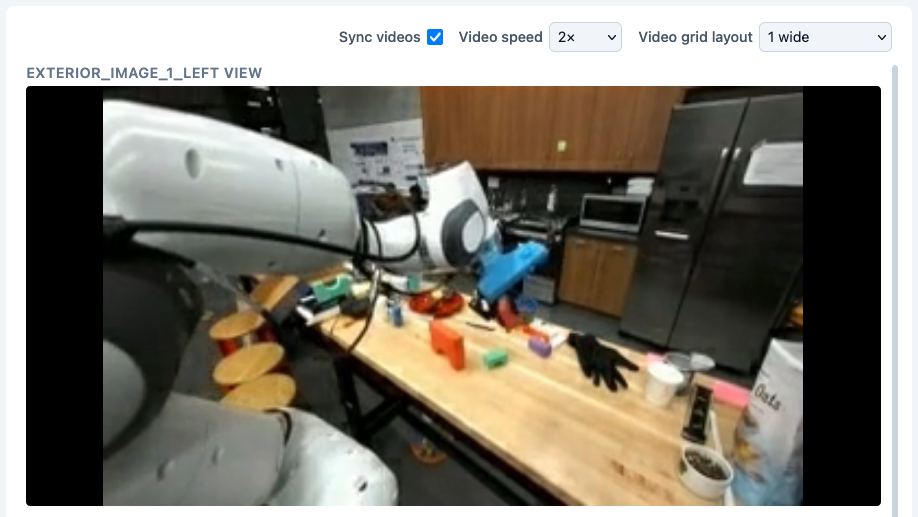
The video panel displays MP4 footage from all cameras recorded during the episode. Use the playback controls to review the rollout before annotating.
For multi-camera episodes, the panel offers:
- Grid layout — choose how many videos are shown per row.
- Playback speed — slow a rollout down to catch a brief failure, or speed through a long one.
- Sync videos — seek, play or pause one camera and the others follow, so all views stay on the same timestep.
These settings persist across episodes and sessions.
(2) Navigation Panel
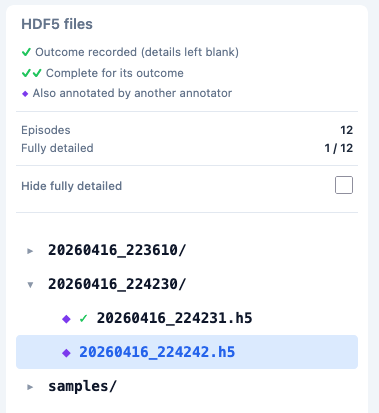
The navigation panels allows for navigation between different episodes. The files are arranged according to the directory structure of your samples directory. If you are using the data recording tools, they are arranged by session.
Annotated episodes are marked with a tick: ✓ means the outcome is recorded but the optional details were left blank, and ✓✓ means the episode is complete for the outcome you chose. A clean Success counts as complete straight away, since nothing further is asked of it. An episode that a different annotator has already labelled is flagged separately — this is expected, since we collect multiple independent annotations per episode to measure inter-annotator disagreement.
To work through a large session efficiently:
- ← / → step to the previous and next episode.
- Next unannotated jumps straight to the next episode that is not yet ✓✓, skipping everything you have already finished.
- Hide annotated removes those episodes from the list entirely.
- Auto-advance moves to the next episode automatically after each save.
- The search box filters the episode tree by filename.
(3) Annotation Panel
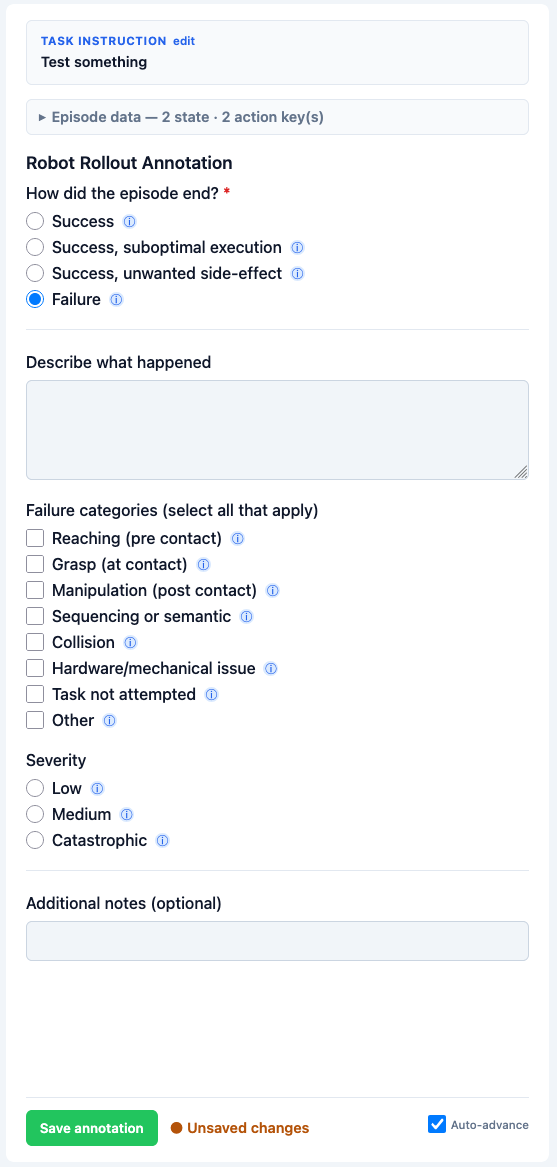
After reviewing the video, use the annotation panel to record how the episode ended.
To display instructions and definitions, you can hover over the small ⓘ icon beside each option.
Please select all side-effect categories that appear during a trajectory. For example, if the robot fails to grasp an object, and knocks another object over, it would be appropriate to select both “Grasp” and “Collision”. Sometimes it might also be ambiguous if a failed grasp should be classified as e.g. a reaching or a grasping problem. In these cases, please again mark all categories that could reasonably apply. Part of our project goal is to obtain data on inter-annotator disagreement on robotic failures, so we expect some variation and disagreement between different annotators.
Questions
The form opens with a single required question, “How did the episode end?”. Your answer determines which of the remaining fields appear:
| Question | Type | Shown when | Notes |
|---|---|---|---|
| How did the episode end? | Radio | always | Required. Four outcomes, see below |
| Describe what happened | Text area | every outcome except a clean success | Free-text description |
| Side-effect categories | Checkbox | side-effect and failure | Select all that apply |
| Severity | Radio | side-effect and failure | How bad the side-effect or failure was |
| Additional notes | Text | always | Free-form field for any extra context |
Only the outcome is required. Every other field is optional and can be used to provide more information on the specific type of failure or side-effect that was observed. Fill in everything that you can provide. When in doubt, feel free to select multiple types of failures and add details in the free-text field.
To speed up repetitive labelling, Copy from a previous annotation offers your own recent, distinct annotations for reuse. Anything that is not a clean success can serve as a template. Picking one fills in its categories, severity and description, which you can then edit. Please only use this option if the failure is legitimately similar. It is almost always better to provide a new, specific annotation.
Outcomes
Not every success is clean, and the difference can matter depending on the downstream use-case. We differentiate between four possible outcomes:
| Outcome | Meaning |
|---|---|
| Success | Task completed correctly, efficiently, and with no unwanted side-effects. Nothing further is asked. |
| Success, suboptimal execution | Task completed, but inefficiently or awkwardly (e.g. many retries, a very indirect path, near-misses). Nothing in the scene was disturbed and nothing was at risk. |
| Success, unwanted side-effect | Task completed, but something unintended happened along the way (e.g. the robot knocked over a nearby object, minor collision) that did not prevent completion. |
| Failure | The task was not completed. |
The distinction between the two qualified successes is about side-effects. A suboptimal execution is a clean run that you might for example not use for behavior cloning, but that has otherwise no issues. Therefore the tool will also not ask for a category or a severity. A side-effect disturbed something, so it requires some additional context for later analysis and use, for example for models that predict mistakes.
Side-effect categories
The taxonomy distinguishes where in the manipulation pipeline the problem occurred. It is used for both failures and successes with side-effects:
| Category | Meaning |
|---|---|
| Reaching (pre contact) | The robot did not reach the target object or location, so no contact was made. If a grasp just barely misses the object, count this as grasp instead. |
| Grasp (at contact) | The target object was not grasped properly. Includes slipping, dropping, or an incorrect grasp. |
| Manipulation (post contact) | The object was grasped but not manipulated as intended. For example, successfully grasping a door handle but failing to open the door. |
| Sequencing or semantic | Error in planning or sequencing of actions. This includes executing a related but wrong action, such as pick-and-place of the wrong object. |
| Collision | Collision with an obstacle or the environment. This can co-occur with other categories; please select all that apply. |
| Hardware/mechanical issue | Hardware or mechanical problem with the robot. |
| Task not attempted | The robot made no discernible attempt at the task, e.g. by stalling. |
| Other | A side-effect or failure mode not covered by the categories above. Please describe it in the free-text field. |
Multiple categories can and often should be selected simultaneously.
Severity
The severity rating helps downstream filtering and risk- or damage-aware training. It applies to failures (how bad the failure was) and to successes with side-effects (how bad the side-effects were):
- Low — no damage; the scene can be reset and the task reattempted
- Medium — some damage or risk of damage, or a significant reset is required, but the task can be reattempted
- Catastrophic — significant damage or risk of damage; the task cannot be reattempted without repair
In-the-loop annotation
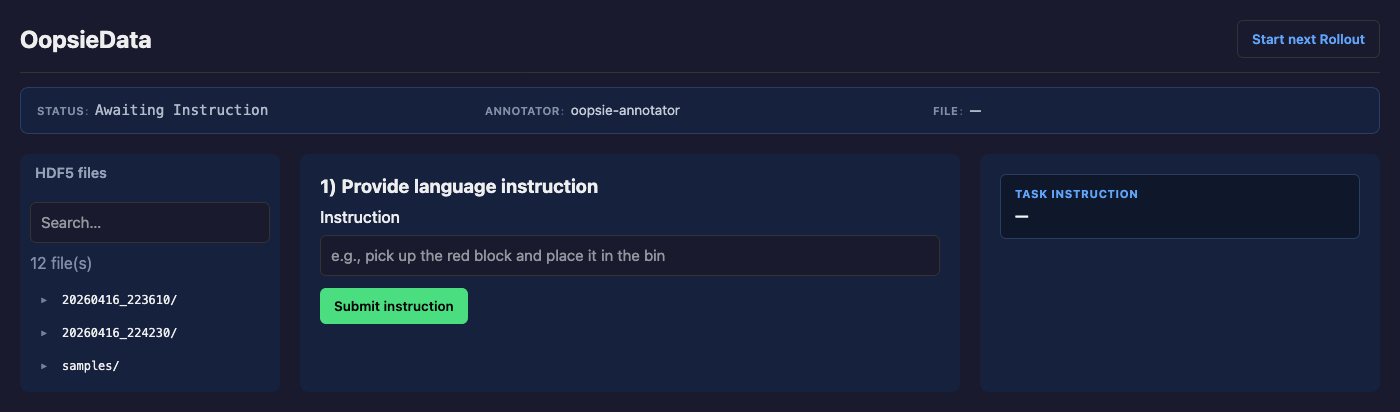
If the rollout annotator is started in-the-loop during robot execution as described in the data collection instructions, an additional page is displayed before annotation. This page allows a user to input a natural language instruction for the task easily. After submitting the instructions, the page will display a waiting annotation while the robot is operating, and return to the annotation overview page after the rollout is finished.
A new rollout will be automatically started after submitting the annotation, or by clicking the “Start new Rollout” button in the top right corner of the screen.
Data output
After each annotated rollout, the annotations are saved back in the original HDF5 file for each episode.